
What are Notion Automations?
And which Notion plan do you need to use them in?
Notion Automations follow the straightforward, yet powerful, logic of a trigger and an action: “If this happens, then do that.” This fundamental structure transforms a simple database into a dynamic, reactive system, almost like having a watchful teammate. To unlock and use these Automation features in your workspace, you must be on the Plus or Business plan. Unfortunately, these robust, database-level automations are not available on the Free plan. However, the Free plan does offer Buttons, which use a similar if/then logic for simple actions like inserting a block, opening a page, or sending a Slack notification. The critical limitation is that Buttons cannot run automations within a database (changing property values based on a trigger), which is the core strength of paid Notion Automations.
2. Advantages of Notion Automations
Moving beyond simple data storage, Notion Automations introduces a layer of intelligence that consistently improves how teams and individuals manage information. The core benefits include:
- Eliminating Manual Error and Ensuring Consistency: Automations enforce rules immediately. When a trigger condition is met ( changing a status from “To Do” to “In Progress”), the subsequent actions (like updating the priority or assigning a team member) happen perfectly every time. This instant, rule-based execution virtually eliminates manual data entry errors. Moreover, it guarantees your properties and data remain consistent across the board.
- Massive Time Savings and Efficiency: The most immediate and significant benefit is saving your time. Automations handle all the repetitive, administrative tasks such as sending notifications, updating due dates, and moving tasks between stages. By delegating this administrative busywork to the system, your team is free to focus its energy on high-value, creative, and strategic work.
- A True Virtual Assistant for Your Workspace: Notion Automations act as a proactive, tireless virtual assistant. They are capable of sophisticated actions like setting complex property values like calculating the end date of a project, notifying the right people via Slack, or assigning new tasks when a project hits a specific milestone. They send notifications, open pages, edit properties, and assign new tasks. This makes your database reactive, dynamic, and actively supportive of your workflow. The system guarantees you never overlook critical steps.
3. How to use Notion Automation: Simple Tutorial
Step 1: Accessing the Automations Menu
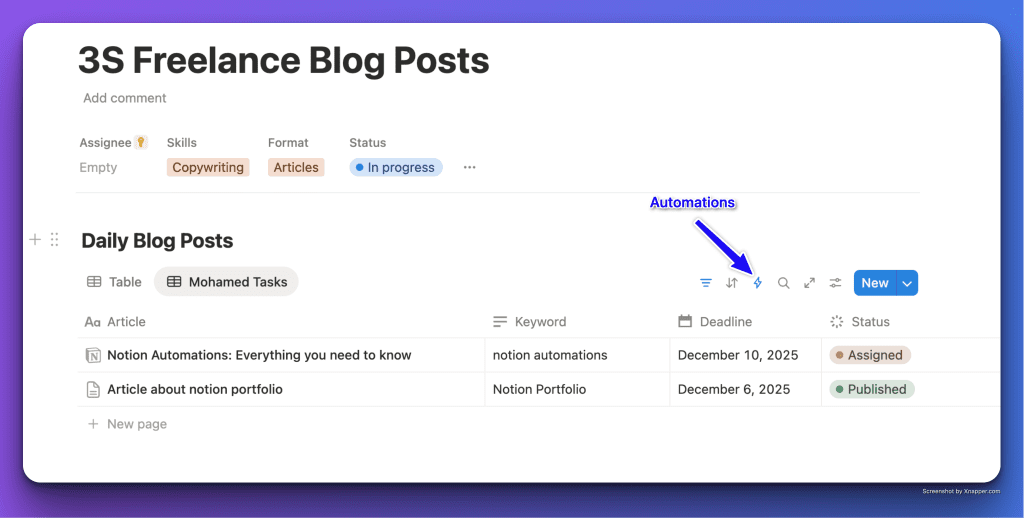
This is the main view of a database. The screenshot highlights the location of the “Create and view automations” button in the upper right corner of the database header. This button is the entry point for accessing the automation configuration panel within the database.
Step 2: Understanding the Building Blocks (Trigger and Action)
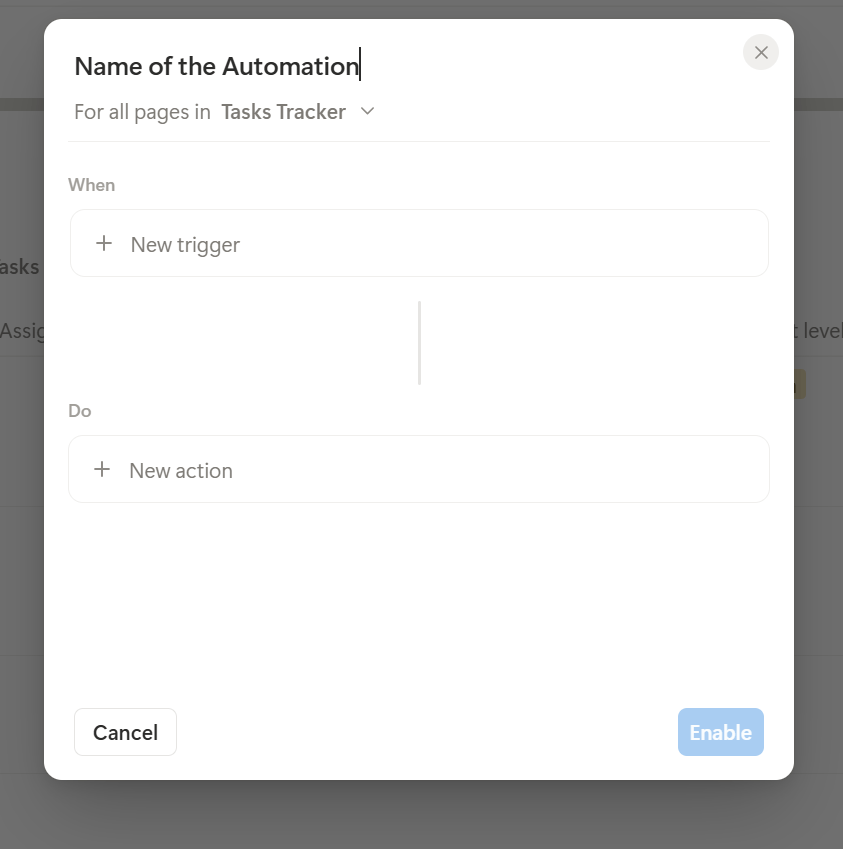
This image displays the blank setup panel for a new automation, titled “Name of the Automation.” It clearly segregates the two core components: the “When” section (for defining the Trigger via “+ New trigger”) and the “Do” section (for defining the Action via “+ New action”). This shows the simple, two-part if/then logic of Notion Automations.
Step 3: Example Notion Automation: Assigning and Prioritizing a Task
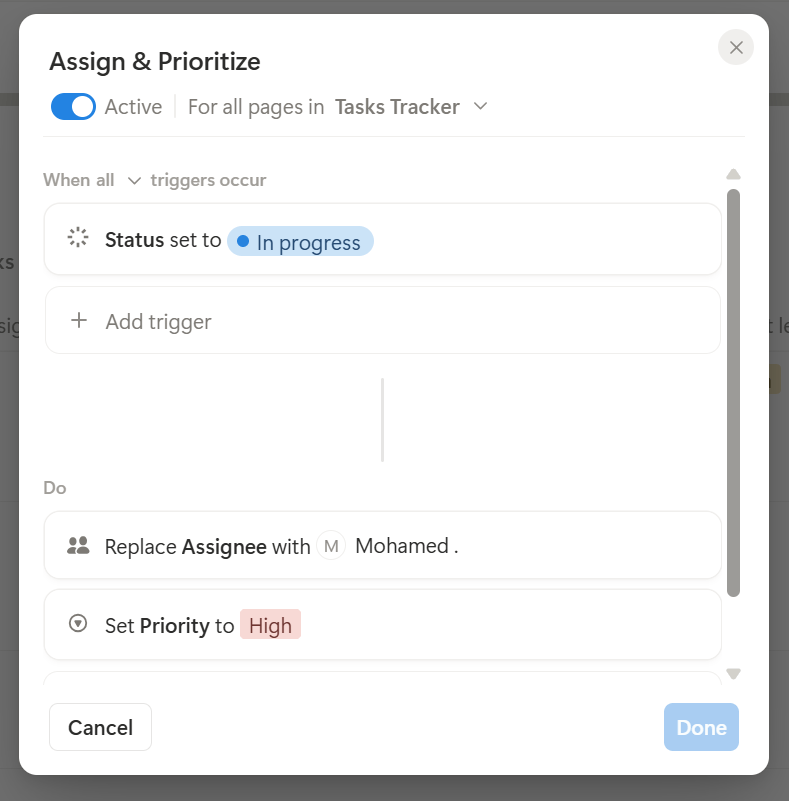
This final image shows the completed automation, named “Assign & Prioritize.” The setup illustrates a trigger and action sequence: WHEN the Status property is set to “In progress” (the Trigger), DO two actions: Replace Assignee with Mohamed and Set Priority to High. This clearly demonstrates how multiple actions can be executed from a single trigger, ensuring the task is instantly routed and prioritized.
See below a live demo of the automation in action:
4. Notion Automation for Business Use Cases
1. Automating Project Kickoffs and Recurring Tasks.
I noticed that many projects share a set of initial, recurring tasks. For a marketing team creating a new campaign, the essential tasks are always the same: Setting a clear goal, defining the target audience, budgeting, selecting channels, and creating initial assets. With automation, I can set a rule: “Whenever a new entry is added to the ‘Campaigns’ database, add these five checklist tasks to the new page.” The automation saves time. It ensures consistency across all projects. You will never miss a critical setup step.
2. Streamlining Client Feedback and Handoffs.
From my experience working with multiple service-based businesses, I saw that the handoff between departments is critical. An automation can manage the transition: “If a project’s ‘Status’ is changed to ‘Ready for Review,’ automatically set the ‘Team’ property to ‘Client Services’ and send a Slack notification to the manager.” This ensures that client-facing teams are instantly alerted when their involvement is required, accelerating the final stages of a project lifecycle.
3. Calculating Time Spent on Tasks.
Using a combination of a Date property and a Formula property, an automation can be set up to trigger the closing date: “If ‘Status’ is changed to ‘Done,’ automatically populate the ‘End Date’ property with the current date and time.” The database’s formula property then calculates the difference between the ‘Start Date’ and the newly populated ‘End Date’, giving me an accurate measurement of how long the task actually took to complete.
5. Final Thoughts: Limitations and Alternatives
Notion Automations efficiently manage internal workflows inside Notion. They function primarily within my Notion workspace. However, understanding their boundaries is key to knowing when to use an external tool:
- Internal Focus and Limited External Integrations: Notion’s built-in automations excel at managing properties, pages, and simple Slack notifications inside Notion. However, they are not designed for deep interaction with external apps. I cannot use an internal Notion automation to automatically create a sales lead in Salesforce. And if I want to add a row to Google Sheets when a project status changes, it is impossible.
- Limited trigger and action options: while using Notion Automations, there is a limited amount of available triggers and actions that you can use, and sometimes you may run into edge cases where the feature is no longer enough.
When to Look Beyond: Powerful Alternatives for Cross-App Automation
However, when my workflow requires connecting Notion to the rest of my business ecosystem, I need a dedicated, third-party integration platform. The two leading alternatives for this are:
- Make.com (formerly Integromat) offers visual, powerful, and flexible workflow building blocks. It allows users to create complex, multi-step workflows involving many different applications.
- Zapier: The market leader for ease of use and its vast library of app connections. If I need a simple, reliable, and quick connection between Notion and a common business tool. Zapier is usually the fastest route.
Do you need help setting up Notion Automations to save your time?
Reach out to me by filing out this form and I’ll support you
Read more articles about Notion:
Notion Portfolio Ideas and Free Templates
The Only HR Complaints Tracker You Need
